
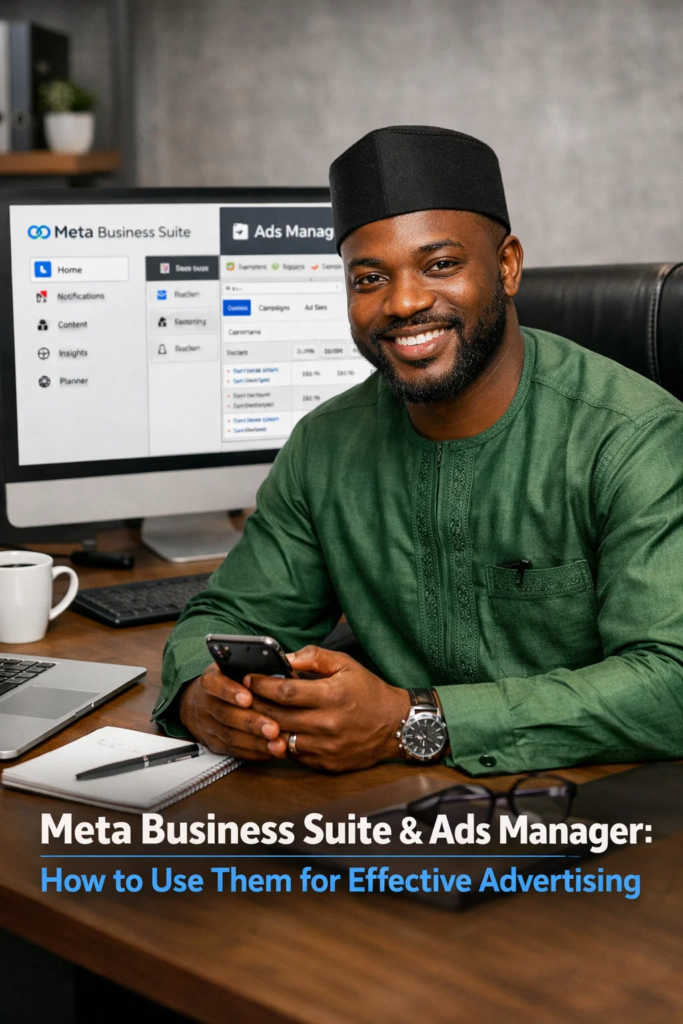

If you want to run successful online ads today, especially on platforms like Facebook and Instagram, understanding how Meta Ads Manager and Business Suite work is essential. These tools, provided by Meta, allow businesses and individuals to create, manage, and track advertising campaigns with precision. Whether you’re a beginner or a growing entrepreneur, learning how to use Meta Ads Manager can significantly improve your marketing results.
Many people search for what is Meta Ads Manager, meta ads manager login, or how to login to Meta Ads Manager because the platform can seem confusing at first. But once you understand the basics, it becomes one of the most powerful tools for reaching your target audience, increasing sales, and growing your brand online.
In this guide, you’ll learn everything you need to know, from setting up your account to running effective campaigns. We’ll also explore the difference between Meta Business Suite vs Facebook Ads Manager, common issues like Meta Ads Manager not loading, and how to get the best results from your ads.
What is Meta Ads Manager?
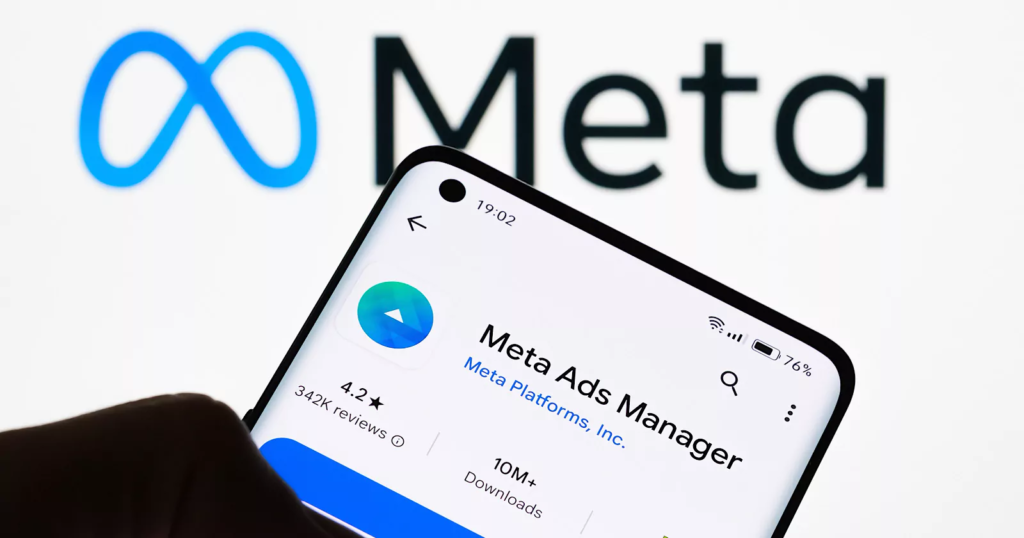
Meta Ads Manager is a tool created by Meta that allows you to create and manage advertisements across Facebook, Instagram, Messenger, and Audience Network.
It is the central dashboard where you:
- Create ad campaigns
- Set your budget
- Define your target audience
- Track performance and results
If you’re serious about digital marketing, understanding what is Meta Ads Manager is the first step toward running profitable ads.
Meta Business Suite and Ads Manager: What’s the Difference?
Many beginners confuse these two tools, so let’s break down Meta Business Suite vs Facebook Ads Manager.
Meta Business Suite
- Used for managing pages and messages
- Schedule posts and content
- Respond to comments and messages
- View basic insights
Meta Ads Manager
- Focused on advertising
- Create and manage ad campaigns
- Advanced targeting options
- Detailed analytics and reporting
In simple terms:
- Business Suite = Content management
- Ads Manager = Advertising control
How to Access Meta Ads Manager
If you’re wondering about meta ads manager login or how to login to Meta Ads Manager, follow these steps:
Step-by-step login process:
- Go to the Meta Ads Manager website
- Log in using your Facebook account
- Select your business account
- Access your dashboard
You can also access it through Meta Business Suite.
Meta Ads Manager Sign Up
To start running ads, you need to complete the meta ads manager sign up process.
What you need:
- A Facebook account
- A Facebook Page
- Payment method (card or bank)
Steps:
- Create a Business Manager account
- Add your Facebook Page
- Set up your ad account
- Add billing information
Meta Ads Manager for PC
Many users prefer using meta ads manager for PC because it offers a better interface and full functionality.
Benefits of using PC:
- Easier navigation
- Better data visualization
- Faster campaign setup
- Access to advanced features
If you’re searching for download meta ads manager for PC, note that there’s no separate software, you simply use it via your web browser.
Key Features of Meta Ads Manager
To run effective ads, you need to understand the main features:
1. Campaign Objectives
You can choose what you want to achieve:
- Traffic
- Engagement
- Leads
- Sales
2. Audience Targeting
Target people based on:
- Location (Nigeria or worldwide)
- Age and gender
- Interests and behavior
3. Budget Control
- Daily budget
- Lifetime budget
- Flexible spending
4. Ad Formats
- Image ads
- Video ads
- Carousel ads
- Stories ads
How to Create an Effective Ad Campaign
To succeed with Meta Ads Manager, you need more than just boosting posts, you need a structured approach that focuses on clear goals, the right audience, and continuous optimization. Whether you’re a beginner or looking to improve your results, following a step-by-step system will help you avoid wasting money and get better returns on your ads.
Below is a detailed breakdown of how to create a high-converting ad campaign using Meta Business Suite and Ads Manager:
Step 1: Choose Your Objective
The first and most important step is selecting the right campaign objective. This tells Meta what you want your ad to achieve, and it directly affects how your ad is shown to users.
If you choose the wrong objective, your campaign may not perform well, even if your content is good.
Common objectives include:
- Sales – Best for selling products or services
- Website visits (Traffic) – Ideal for driving people to your website or landing page
- Brand awareness – Great for introducing your business to new audiences
- Engagement – Useful for getting likes, comments, and shares
- Leads – Perfect for collecting customer information
Tip: If you’re just starting, go for engagementortraffic before moving to salescampaigns.
Step 2: Define Your Audience
Audience targeting is where Meta Ads Manager truly shines. Instead of showing your ad to everyone, you can narrow it down to people who are most likely to be interested in your offer.
The more specific your audience, the better your chances of getting results.
Be specific with:
- Age range – Example: 18–35 for youth-focused products
- Interests – Such as fashion, fitness, business, or tech
- Location – Target Nigeria, specific states, or even cities
- Behavior – Online shoppers, frequent buyers, etc.
Advanced targeting tips:
- Use custom audiences (people who have interacted with you before)
- Use lookalike audiences to find similar people to your existing customers
Avoid targeting too broad or too narrow; find a balance.
Step 3: Set Your Budget
Budgeting is crucial when running ads, especially if you’re just starting out. One of the best things about Meta Ads Manager for PC is that it gives you full control over how much you spend.
Types of budgets:
- Daily budget – Amount spent per day
- Lifetime budget – Total amount for the campaign duration
Beginner recommendation:
- Start with ₦2,000 – ₦5,000 daily
- Run ads for at least 3–5 days before making changes
Budget tips:
- Don’t increase your budget too quickly
- Test different ads with small budgets first
- Scale only what is working
Step 4: Create Your Ad
This is where creativity meets strategy. Your ad is what people see, so it needs to capture attention and encourage action.
A good ad has three main parts: visuals, copy, and call-to-action.
What to focus on:
- Use high-quality images or videos
- Clear, bright, and attention-grabbing
- Short videos perform very well
- Write clear and engaging captions
- Start with a strong hook
- Focus on benefits, not just features
- Keep it simple and easy to read
- Add a strong call-to-action (CTA)
- “Buy Now”
- “Learn More”
- “Send Message”
Content tips:
- Speak directly to your audience’s problem
- Show how your product solves it
- Use testimonials or social proof if possible
Step 5: Launch and Monitor
Once your ad is live, your job is not done. Monitoring is what separates successful advertisers from beginners.
With Meta Ads Manager, you can track everything in real time.
Key metrics to watch:
- CTR (Click-Through Rate) – Are people clicking?
- CPC (Cost Per Click) – How much are you paying per click?
- Conversions – Are people buying or taking action?
- Engagement – Likes, comments, shares
What to do after launching:
- Let the ad run for a few days before judging performance
- Turn off ads that are not performing
- Increase budget on winning ads
- Test new creatives and audiences
Bonus Tips for Better Results
To maximize your success with Meta Ads Manager:
- Always test multiple ads (A/B testing)
- Use simple and clear messaging
- Focus on solving problems, not just selling
- Keep learning and improving your strategy
Tips for Effective Advertising
To get the best results from Meta Ads Manager, you need a combination of creativity, strategy, and consistent optimization. Running ads is not just about launching a campaign; it’s about understanding what works, improving what doesn’t, and maximizing your return on investment. Below is a more detailed explanation of the key tips:
• Use Eye-Catching Visuals
Visuals are the backbone of your ad. In a crowded feed, your image or video must instantly grab attention and make people stop scrolling.
- Use high-quality, clear, and bright images
- Short videos (5–15 seconds) tend to perform better
- Show real-life use of the product or service
- Add text overlays to highlight key benefits
- Ensure your visuals match your message
Strong visuals increase engagement and improve your chances of getting clicks and conversions.
Keep Your Message Simple
People don’t have time to read long or complicated ads. Your message should be clear, direct, and easy to understand within seconds.
- Focus on one main benefit or offer
- Use simple, conversational language
- Avoid jargon or technical terms
- Start with a strong hook to grab attention
A simple message makes it easier for your audience to understand what you’re offering and why they should care.
Test Different Ads (A/B Testing)
One of the biggest mistakes beginners make is relying on a single ad. With A/B testing, you can compare different versions and find out what works best.
You can test:
- Different images or videos
- Headlines and captions
- Call-to-action buttons
- Audience segments
Run multiple ads at once, then keep the best-performing ones and turn off the rest.
• Target the Right Audience
Your ad performance depends heavily on who sees it. Even a great ad will fail if it’s shown to the wrong audience.
- Define your audience based on age, gender, and location
- Use interest-based targeting (e.g., fashion, business, tech)
- Avoid overly broad targeting
- Use custom audiences (people who have interacted with you before)
- Try lookalike audiences to reach similar people
The more relevant your audience, the higher your chances of making sales or getting results.
• Monitor Your Results Regularly
Launching your ad is just the beginning. You need to track performance and make adjustments based on real data.
Key metrics to watch:
- Click-through rate (CTR)
- Cost per click (CPC)
- Conversions (sales or leads)
- Engagement (likes, comments, shares)
If an ad is underperforming, tweak it or stop it early to avoid wasting money.
Common Problems and Solutions
Meta Ads Manager Not Loading
If you experience meta ads manager not loading, try:
- Clearing your browser cache
- Switching browsers
- Checking your internet connection
- Disabling extensions
Login Issues
If you can’t access your account:
- Reset your password
- Check your account permissions
- Ensure your account isn’t restricted
Meta Ads Manager Support
If problems persist, contact meta ads manager support through:
- Help Center
- Business Support Chat
- Email support
Benefits of Using Meta Ads Manager
Using Meta Ads Manager gives you:
- Precise audience targeting
- Measurable results
- Flexible budgeting
- Massive reach (Facebook + Instagram)
- Increased sales potential
Frequently Asked Questions (FAQ)
1. What is Meta Ads Manager?
Meta Ads Manager is a tool provided by Meta that allows you to create, manage, and track advertisements on Facebook, Instagram, Messenger, and Audience Network. It helps businesses reach targeted audiences and measure ad performance effectively.
2. How do I access Meta Ads Manager login?
To access meta ads manager login:
- Go to the Meta Ads Manager website
- Log in using your Facebook account
- Select your business account
- Start managing your ads
You can also access it through Meta Business Suite.
3. Do I need Meta Business Suite to use Ads Manager?
No, but they work together. Meta Business Suite and Ads Manager are connected tools:
- Business Suite is for managing content and messages
- Ads Manager is for running and analyzing ads
Using both gives you better control over your marketing.
4. How do I sign up for Meta Ads Manager?
To complete meta ads manager sign up:
- Create a Facebook account
- Set up a Facebook Page
- Open Meta Business Manager
- Add your ad account and payment method
Once done, you can start creating campaigns.
5. Can I use Meta Ads Manager on PC?
Yes, you can use meta ads manager for PC through your web browser. There is no need to install any software.
If you’re searching for download meta ads manager for pc, note that it is web-based and does not require downloading.
6. What is the difference between Meta Business Suite and Ads Manager?
The difference between meta business suite vs facebook ads manager is:
- Meta Business Suite: Manage posts, messages, and page activity
- Meta Ads Manager: Create, run, and analyze ads
Both tools serve different but complementary purposes.
7. Why is Meta Ads Manager not loading?
If you experience meta ads manager not loading, try:
- Refreshing the page
- Clearing your browser cache
- Switching browsers
- Checking your internet connection
This usually resolves the issue.
8. How much does it cost to use Meta Ads Manager?
Creating an account is free, but running ads requires a budget. You can start with as little as:
- ₦2,000 – ₦5,000 per day
Your total cost depends on your campaign goals and duration.
9. How do I run a successful ad on Meta Ads Manager?
To succeed:
- Choose the right campaign objective
- Target the correct audience
- Use high-quality visuals
- Write engaging ad copy
- Monitor and optimize your campaign
Consistency and testing are key.
10. Can beginners use Meta Ads Manager?
Yes, beginners can use Meta Ads Manager, although it may seem complex at first. With practice, it becomes easier to understand and use effectively.
11. How do I contact Meta Ads Manager support?
To reach meta ads manager support:
- Visit the Meta Help Center
- Use live chat (if available)
- Submit a support request
Support options may vary depending on your account.
12. Is Meta Ads Manager good for small businesses?
Yes, it is very effective for small businesses because:
- You can target specific audiences
- You control your budget
- You can track results easily
It’s one of the best tools for online advertising today.
13. What types of ads can I create with Meta Ads Manager?
You can create:
- Image ads
- Video ads
- Carousel ads
- Story ads
- Lead generation ads
Each format serves different marketing goals.
14. How long does it take for ads to start working?
Ads usually start running within a few hours after approval. However, it may take:
- 2–3 days to see meaningful results
- 5–7 days for proper optimization
Patience and monitoring are important.
Final Thoughts on Meta Business Suite and Ads Manager
Understanding how to use Meta Business Suite and Ads Manager is one of the most valuable skills in digital marketing today. These tools give you full control over your advertising efforts, allowing you to reach the right audience, track performance, and scale your business effectively.
For beginners, the platform may seem overwhelming at first, especially when dealing with features like targeting, budgeting, and analytics. However, once you learn the basics and start experimenting, you’ll realize how powerful Meta Ads Manager truly is. The key is to start small, test your campaigns, and improve over time.
Finally, consistent learning and practice will set you apart. Whether you’re promoting a small business, running affiliate marketing campaigns, or building a brand, mastering Meta Ads Manager can help you achieve long-term success in the online space.